Set Up WCP with Cursor
Get connected in about 5 minutes.
Prerequisites
- Cursor installed (download here)
- A WCP Cloud account (you'll create one in Step 1)
Sign Up for WCP Cloud
Go to workcontextprotocol.io/login and enter your email address.

Check your inbox for an email from WCP Cloud and click the login button.
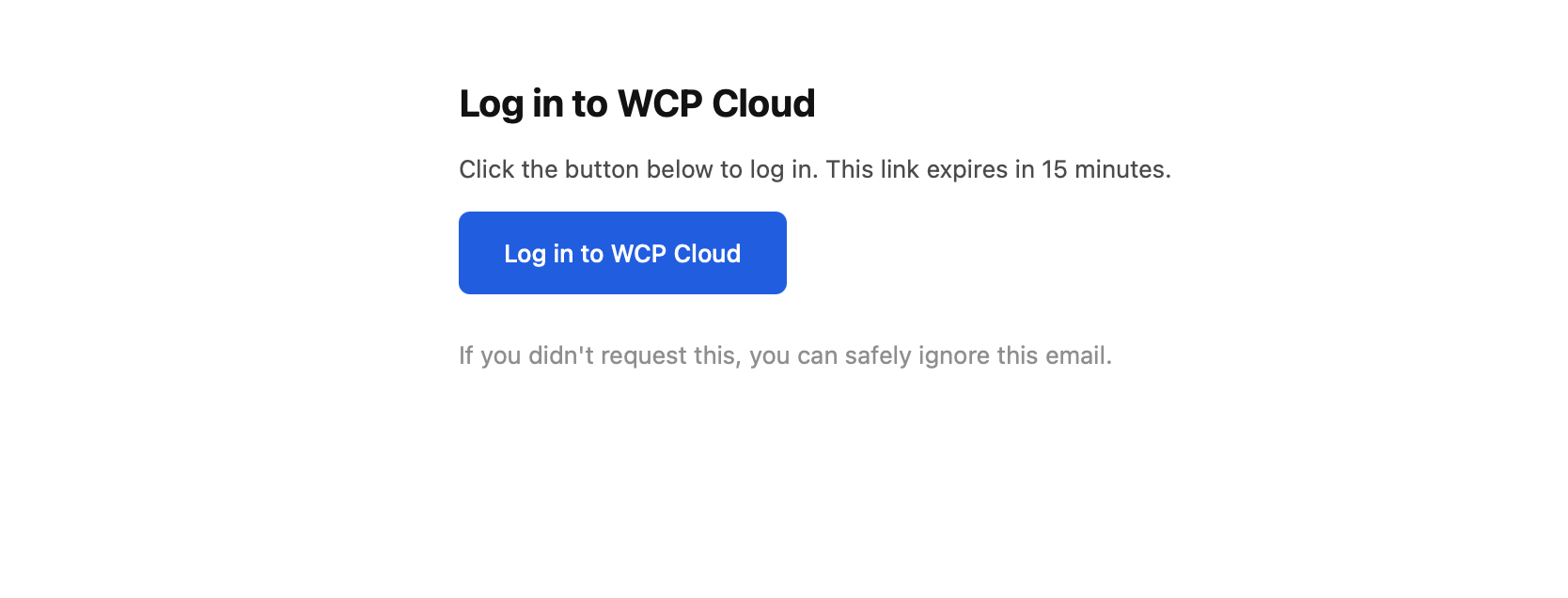
You're logged in and can see your dashboard.
Get Your Connection URL
Go to Settings and find your MCP connection URL.
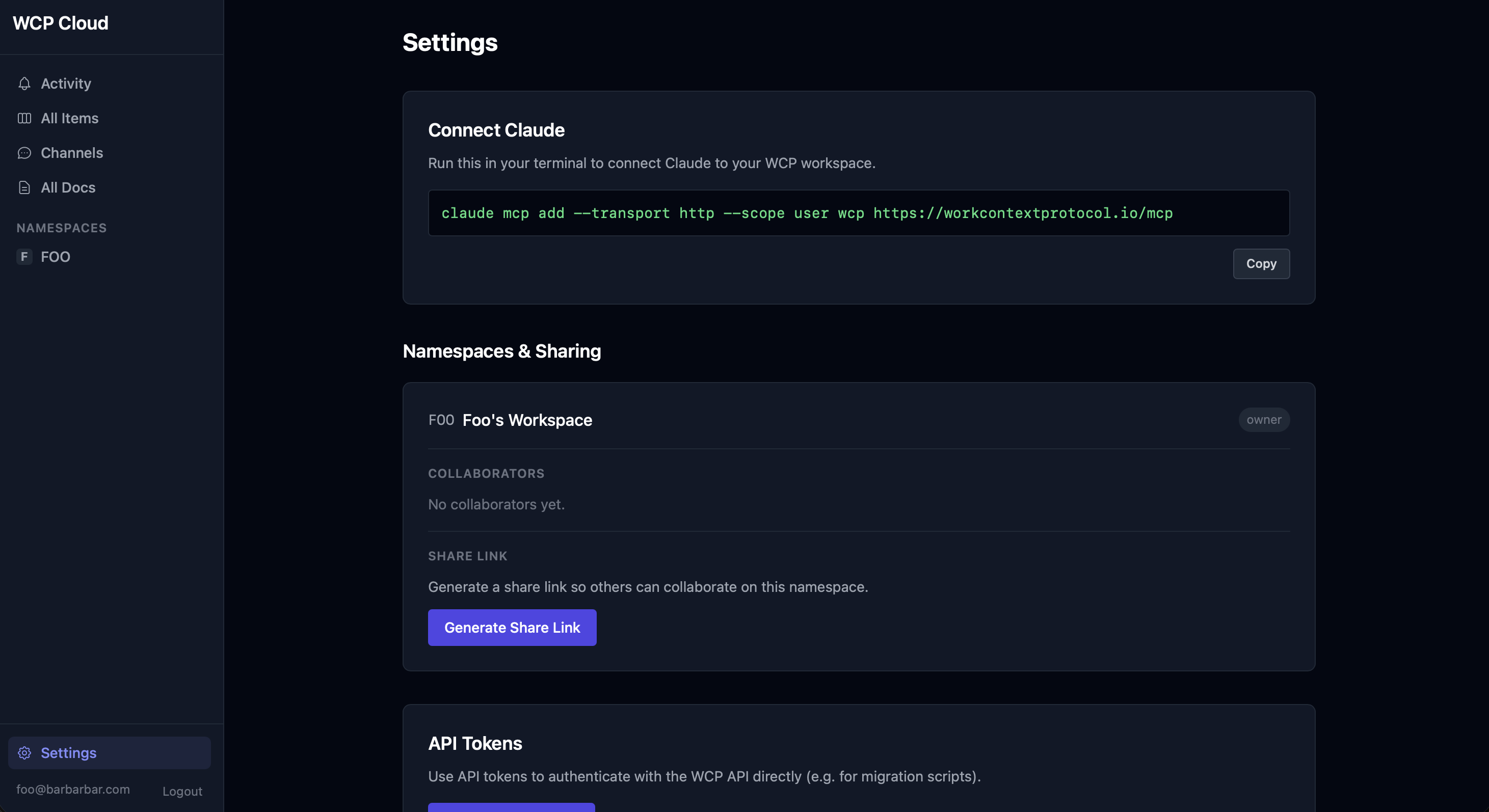
You have your MCP connection URL.
Configure Cursor
Open Cursor and go to Settings → MCP → Add new server. Add the following JSON configuration:
{
  "mcpServers": {
    "wcp": {
      "url": "https://workcontextprotocol.io/mcp"
    }
  }
}
Alternatively, add this to your ~/.cursor/mcp.json file.
The WCP server appears in Cursor's MCP settings.
Verify It Works
Restart Cursor, then open a new AI chat and ask it to run wcp_namespaces. You should see your default namespace listed.
The AI shows your namespaces. You're all set!
Troubleshooting
"Connection refused" or timeout
Make sure the URL is exactly https://workcontextprotocol.io/mcp. Check your internet connection and try again.
"Unauthorized" or token error
Your connection may have expired. Log in at Settings and check your MCP connection URL. Make sure your email is verified.
"No tools found"
Restart your platform after adding the MCP connector. Most platforms need a full restart (not just a new conversation) to pick up new MCP servers.
Tool calls return errors
Check that your email is verified. Go to Settings to confirm your verification status. Unverified accounts can connect but cannot use tools.
Can't open a browser on this machine
Add the MCP server without auth and try a tool call — you'll get a device code to activate from any other device (phone, laptop). See the Remote & Headless Environments section of the Claude Code guide.
wcp_namespaces returns empty
This is normal for brand new accounts. A default namespace was created when you signed up. Try asking your AI assistant to call wcp_namespaces — you should see at least one namespace listed.
Using a different platform?